



Run your team
Bosferi AIChat, web search, files, calendar and menu actionsNotesShared team notesFilesFolders, QR upload, previewsCalendarOne shared team calendarSheetsSpreadsheets for your teamTrack your money
ExpensesReceipts scanned by AIOne workspace, many apps
Every app shares your people, sign in and permissions. Turn on only what you need.
View all appsNot sure where to start?
Tell us how your business runs and we'll point you to the right apps.
Browse the help centerTalk to usFrom a blank grid to numbers that add up.
Here's what happens from your first sheet to sorting, filtering and sharing your data.
- 1
Step 1
Create a sheet
Add a sheet and give it a name. Add more as tabs, and drag them into the order you want.
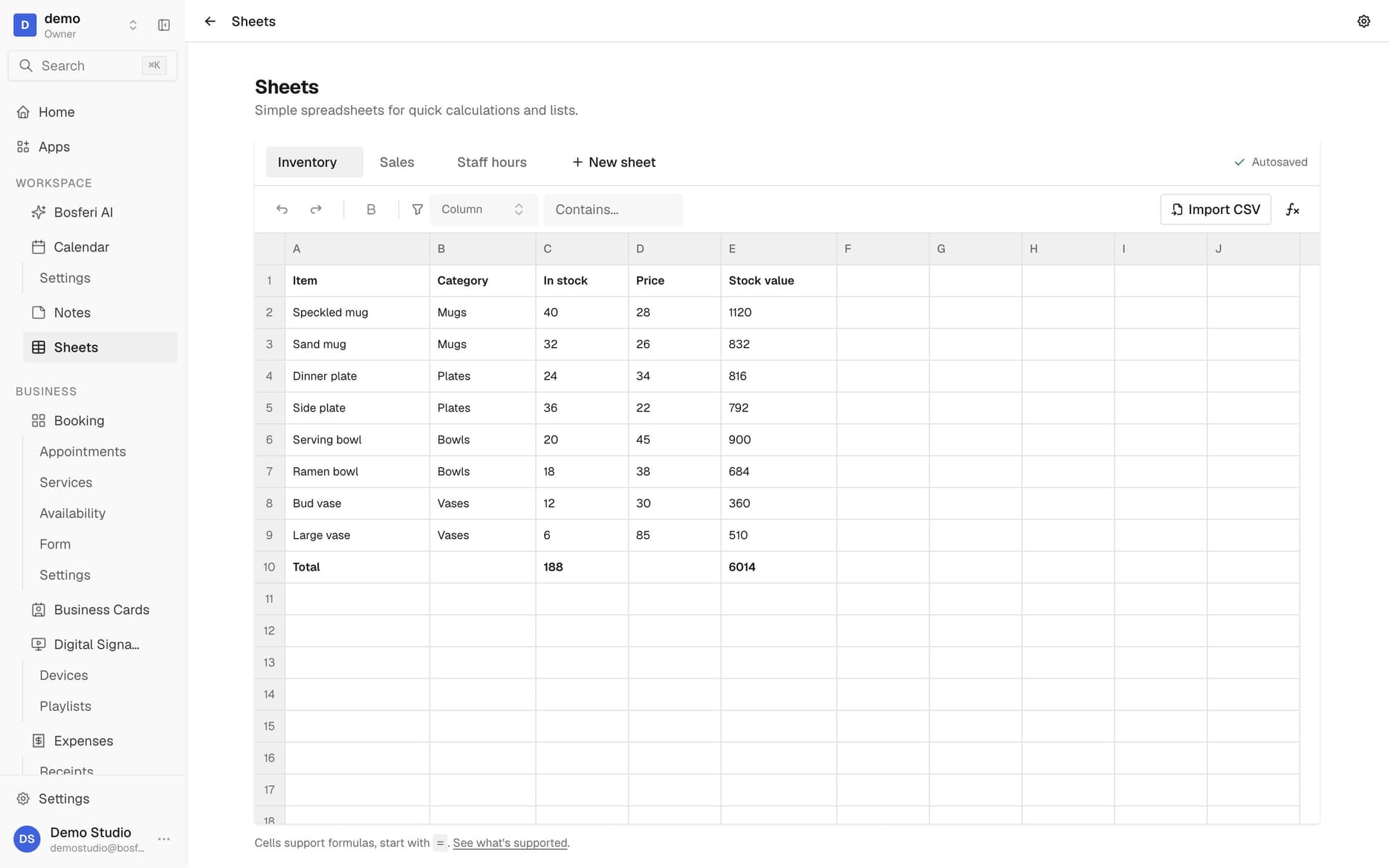
Tip. Right click a tab to rename, duplicate or export it.
- 2
Step 2
Enter your data
Click a cell and type. Insert or delete rows and columns, resize columns, and the header row stays in view as you scroll.
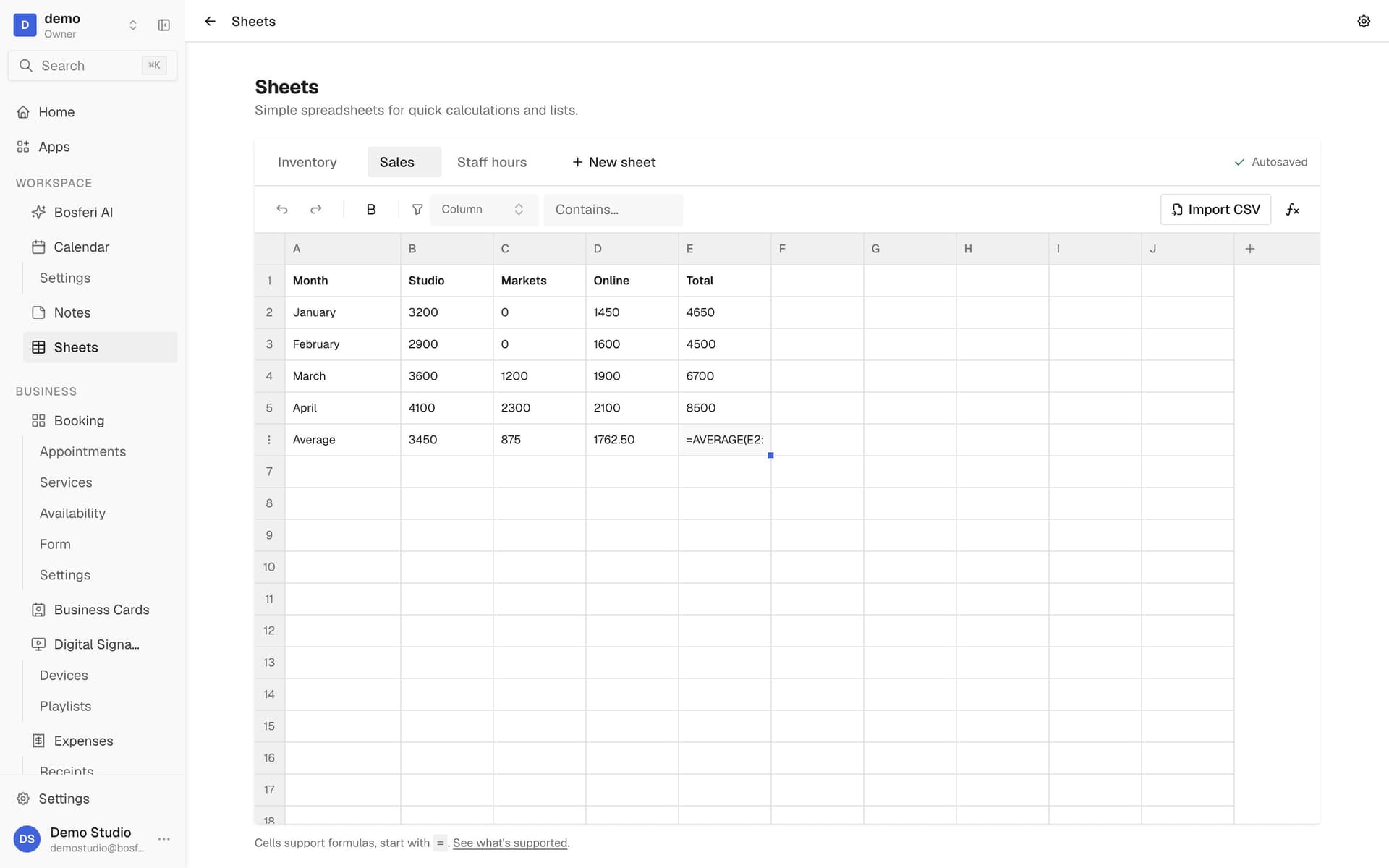
Tip. Make the first row your headers. It stays in view while you scroll.
- 3
Step 3
Write a formula
Start with = to reference other cells, use +, -, * and /, or add up a range with SUM, AVERAGE, MIN or MAX.
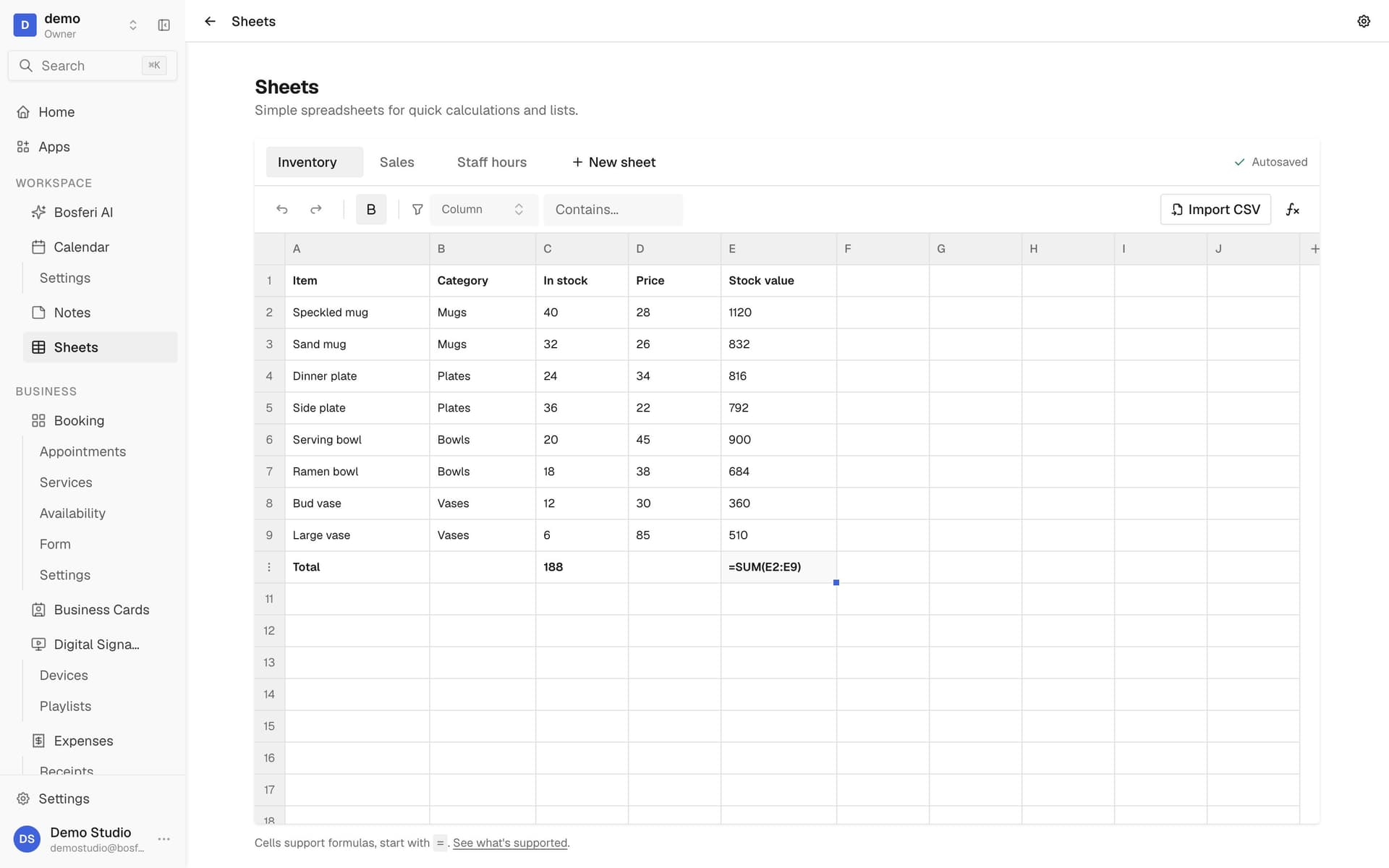
Tip. Click a cell with a formula to see it, and click any other cell to see its result again.
- 4
Step 4
Select, fill and paste
Drag to select a range, pull the fill handle to repeat a value, and copy or paste whole ranges at once.
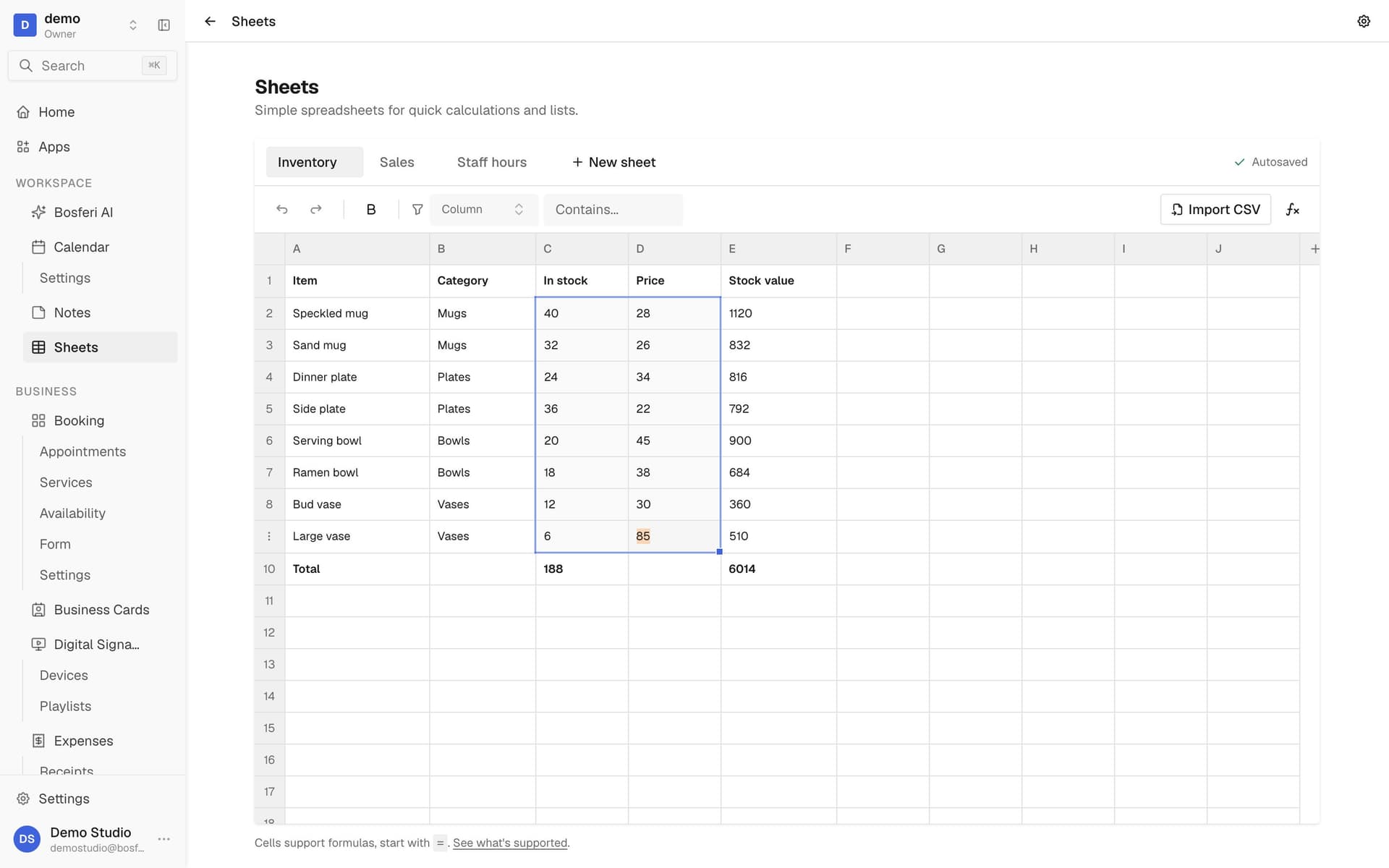
Tip. Shift click a second cell to select everything between the two.
- 5
Step 5
Sort and filter
Sort a column up or down, which reorders the rows for everyone. Filter one column to see only the rows you need.
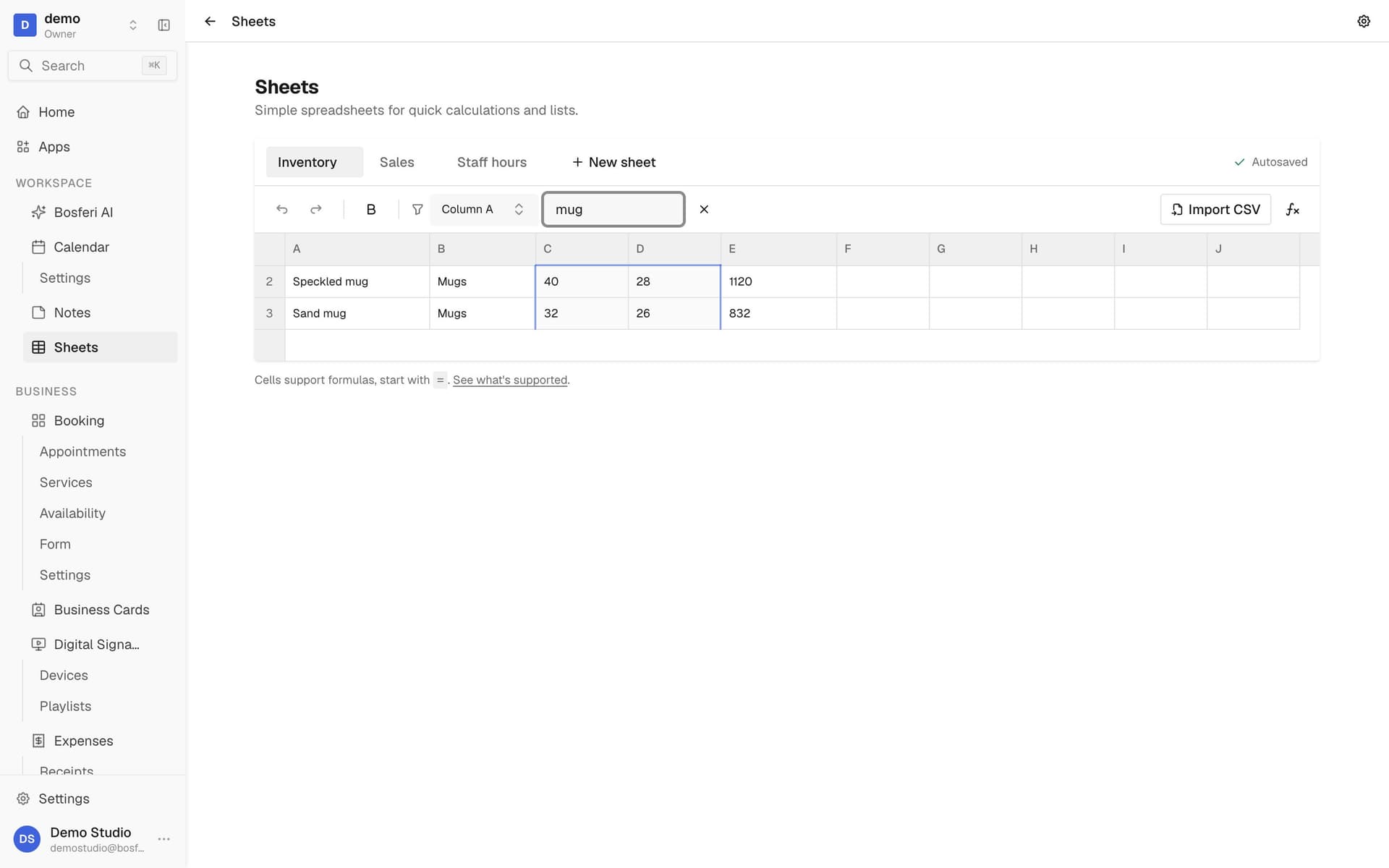
Tip. Filtering only hides rows on your screen. Sorting reorders them for everyone, and undo puts them back.
- 6
Step 6
Import or export CSV
Bring in a CSV file to start from your own data, or export a sheet to CSV to use it anywhere else.
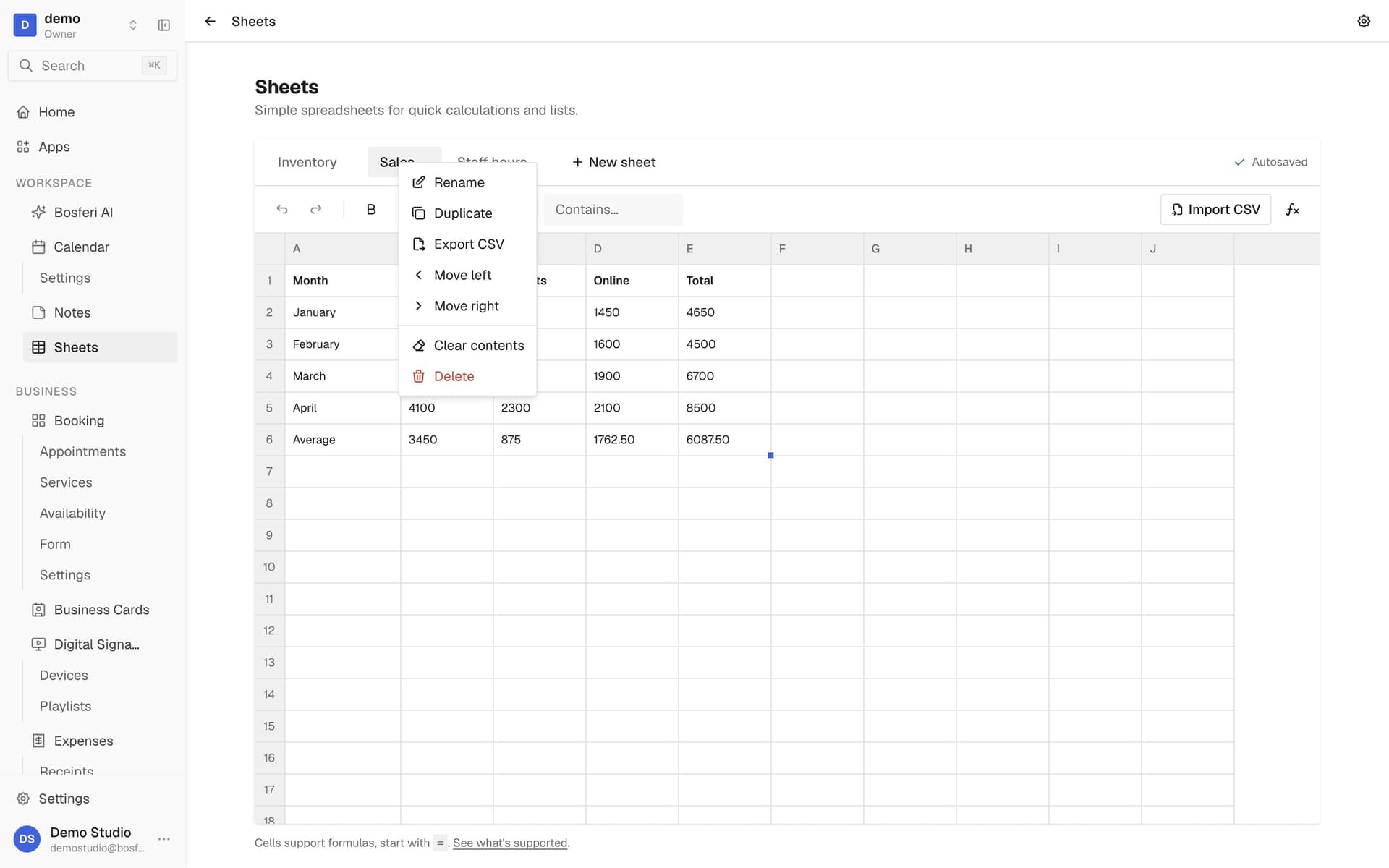
Tip. Pick a comma or semicolon separator in settings to match the app you export to.
Get started
Try it with your own data.
Start your 14-day free trial. No card required until you decide to keep a paid app or move to Business.
We use cookies for essential site functionality and, only with your consent, for analytics and advertising. Learn more.