



Run your team
Bosferi AIChat, web search, files, calendar and menu actionsNotesShared team notesFilesFolders, QR upload, previewsCalendarOne shared team calendarSheetsSpreadsheets for your teamTrack your money
ExpensesReceipts scanned by AIOne workspace, many apps
Every app shares your people, sign in and permissions. Turn on only what you need.
View all appsNot sure where to start?
Tell us how your business runs and we'll point you to the right apps.
Browse the help centerTalk to usFrom a dish library to a menu customers scan.
Here's exactly what happens from building your dishes to publishing a menu with a QR code that never changes.
- 1
Step 1
Build a dish once in your Dish Library
Add a photo, price, allergens, and variants for a dish once. From there it can drop onto your lunch menu, dinner menu, or any other menu without retyping it.

Tip. Add variants like Small and Large on the dish itself, so every menu gets the same sizes and prices.
- 2
Step 2
No photo? Let AI make one
Enhance a photo you've already uploaded, or generate a brand new dish photo from a text description. Both are billed from the same AI credit balance as the rest of Bosferi.
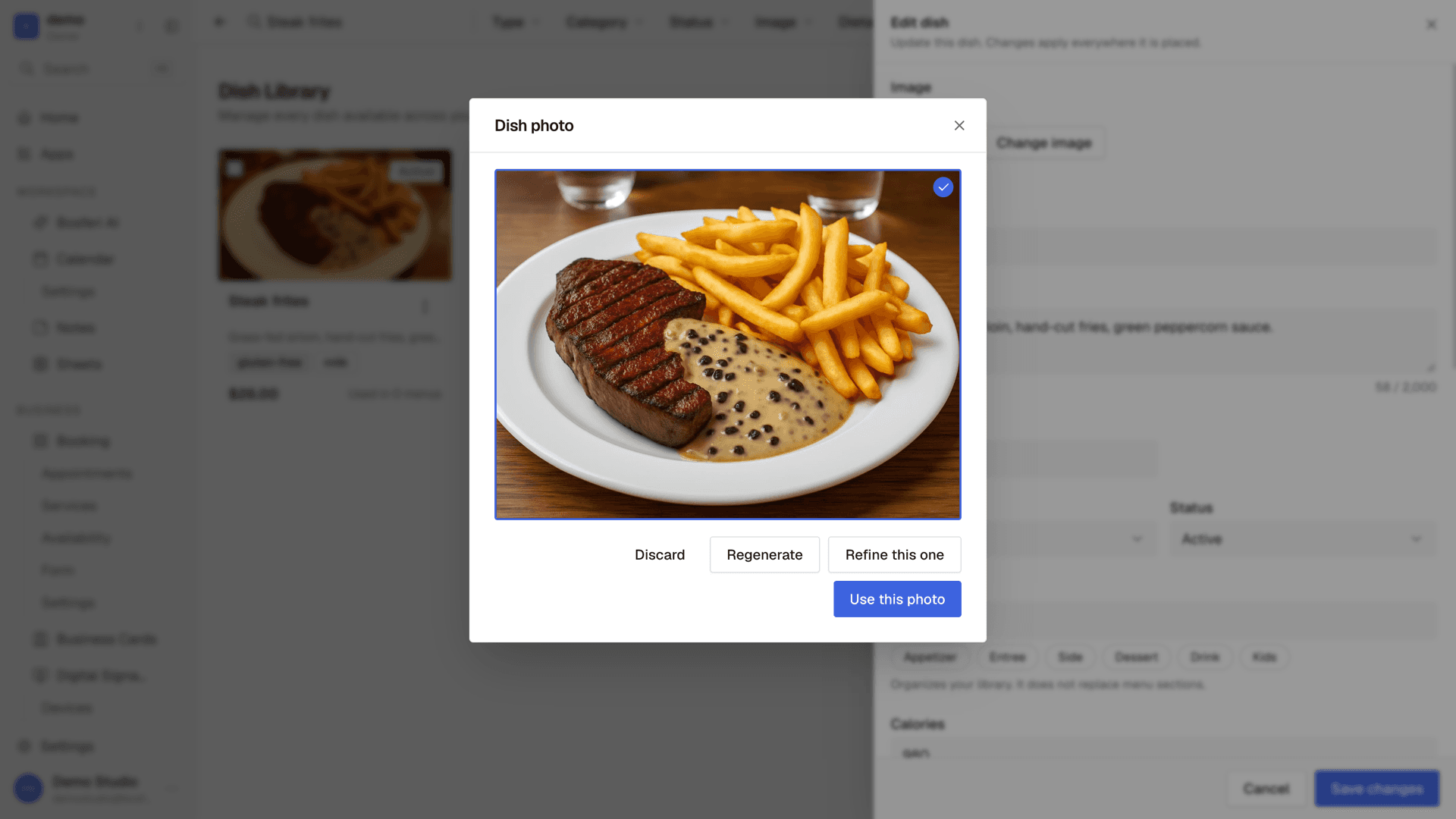
Tip. Enhance costs 3 credits and Generate costs 8. If a photo fails, the credits come back.
- 3
Step 3
Assemble the menu by dragging
Create a menu, add sections like Starters or Mains, drag dishes into place, and reorder anything by dragging it where it belongs. The live preview updates as you go.

Tip. Need a different price on one menu? Change it there. The dish in your library stays the same.
- 4
Step 4
Make it look like your place
Pick a template, then adjust the fonts, colors, and dish card layout. Add your logo, a cover photo, and a footer with your hours, address, and social links.
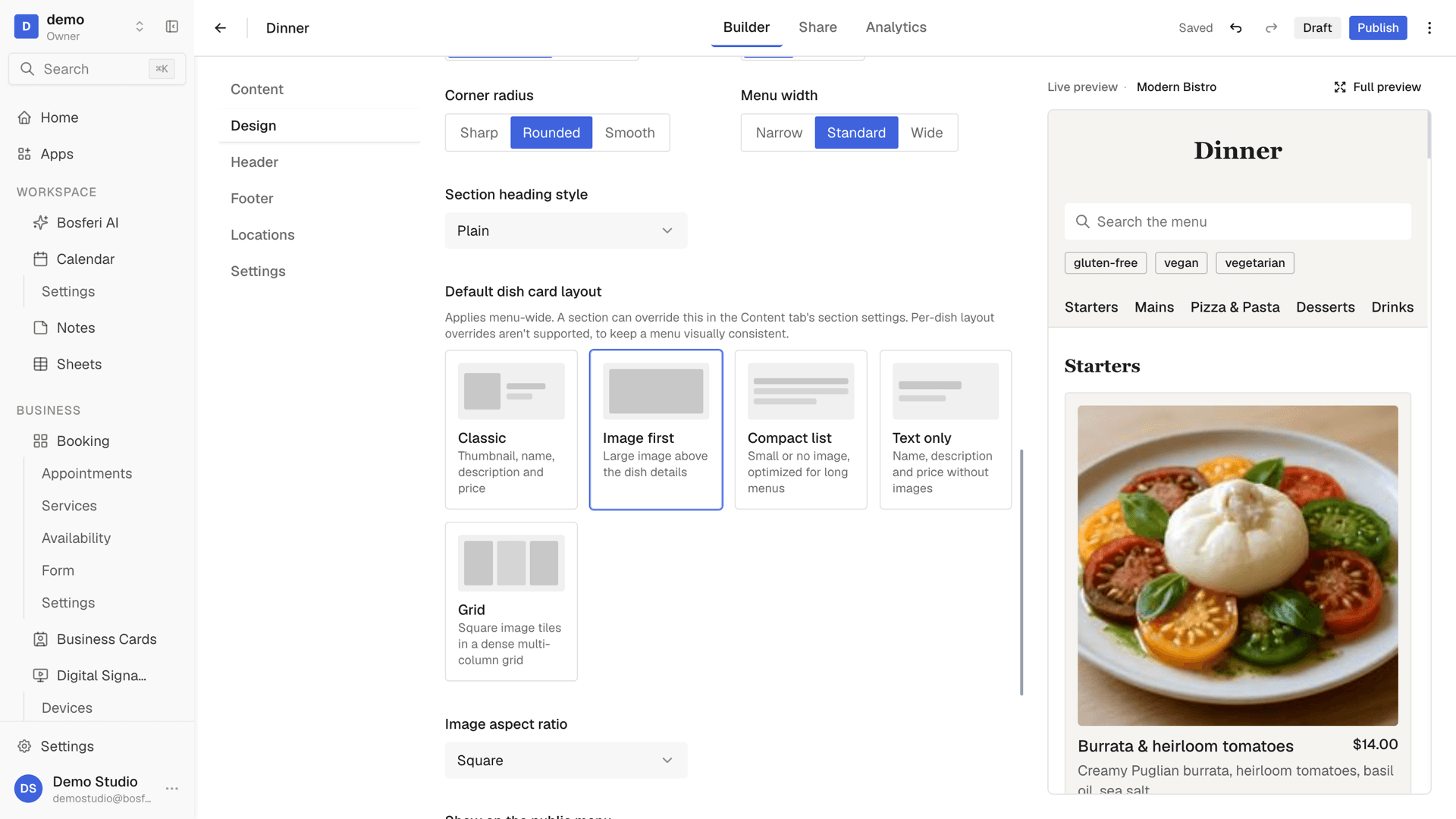
Tip. Switch the card layout to a photo grid if your dishes have good photos. The preview updates right away.
- 5
Step 5
Build it for one location
Each menu belongs to one location, so every place gets its own menus. Change a price or mark a dish sold out on one menu without touching the shared dish.

Tip. Mark a dish sold out on one location's menu when it runs out, and turn it back on the next day.
- 6
Step 6
Publish now or on a schedule
Run through the publish checklist, then publish right away, schedule it for later, or limit it to a recurring window like lunch hours. Every publish saves a version you can restore.
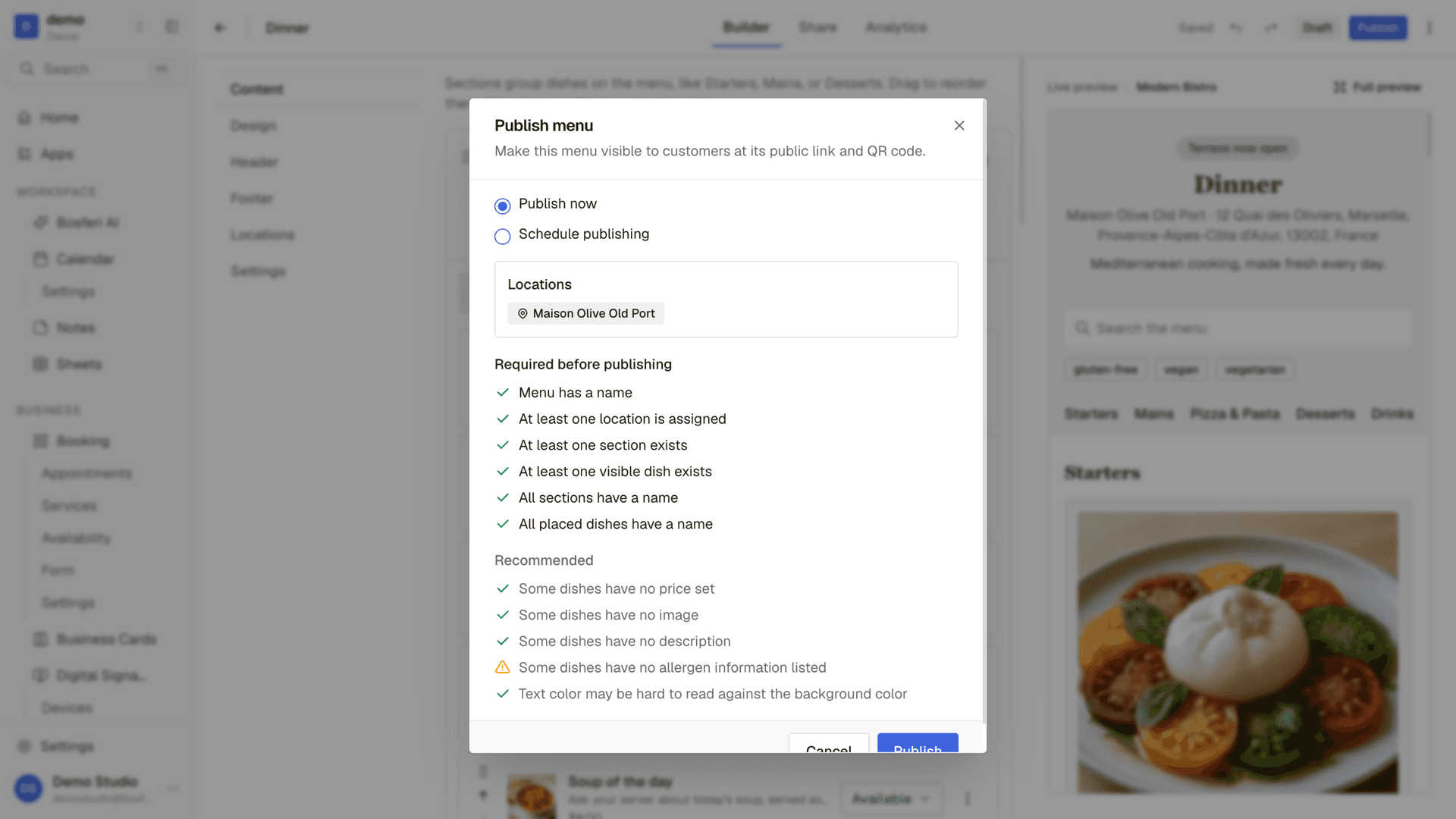
Tip. Every publish saves a version. If an edit goes wrong, restore any of the last 10.
- 7
Step 7
Share the QR code and watch the scans
Style your QR code and download it as PNG or SVG for tables and windows. Then see scans, unique visitors, top dishes, and what customers searched for.

Tip. Print the QR code once. It keeps pointing to the same menu while you edit it.
Get started
Try it with your own menu.
Start your 14-day free trial. No card required until you decide to keep a paid app or move to Business.
We use cookies for essential site functionality and, only with your consent, for analytics and advertising. Learn more.