



Run your team
Bosferi AIChat, web search, files, calendar and menu actionsNotesShared team notesFilesFolders, QR upload, previewsCalendarOne shared team calendarSheetsSpreadsheets for your teamTrack your money
ExpensesReceipts scanned by AIOne workspace, many apps
Every app shares your people, sign in and permissions. Turn on only what you need.
View all appsNot sure where to start?
Tell us how your business runs and we'll point you to the right apps.
Browse the help centerTalk to usFrom your camera roll to your team's folder.
Here's exactly what happens from uploading a file to finding it again, organized and ready to share.
- 1
Step 1
Upload from your computer
Drop images, PDFs, or videos in from your desktop and they land in the shared company space. No personal drive to keep in sync.
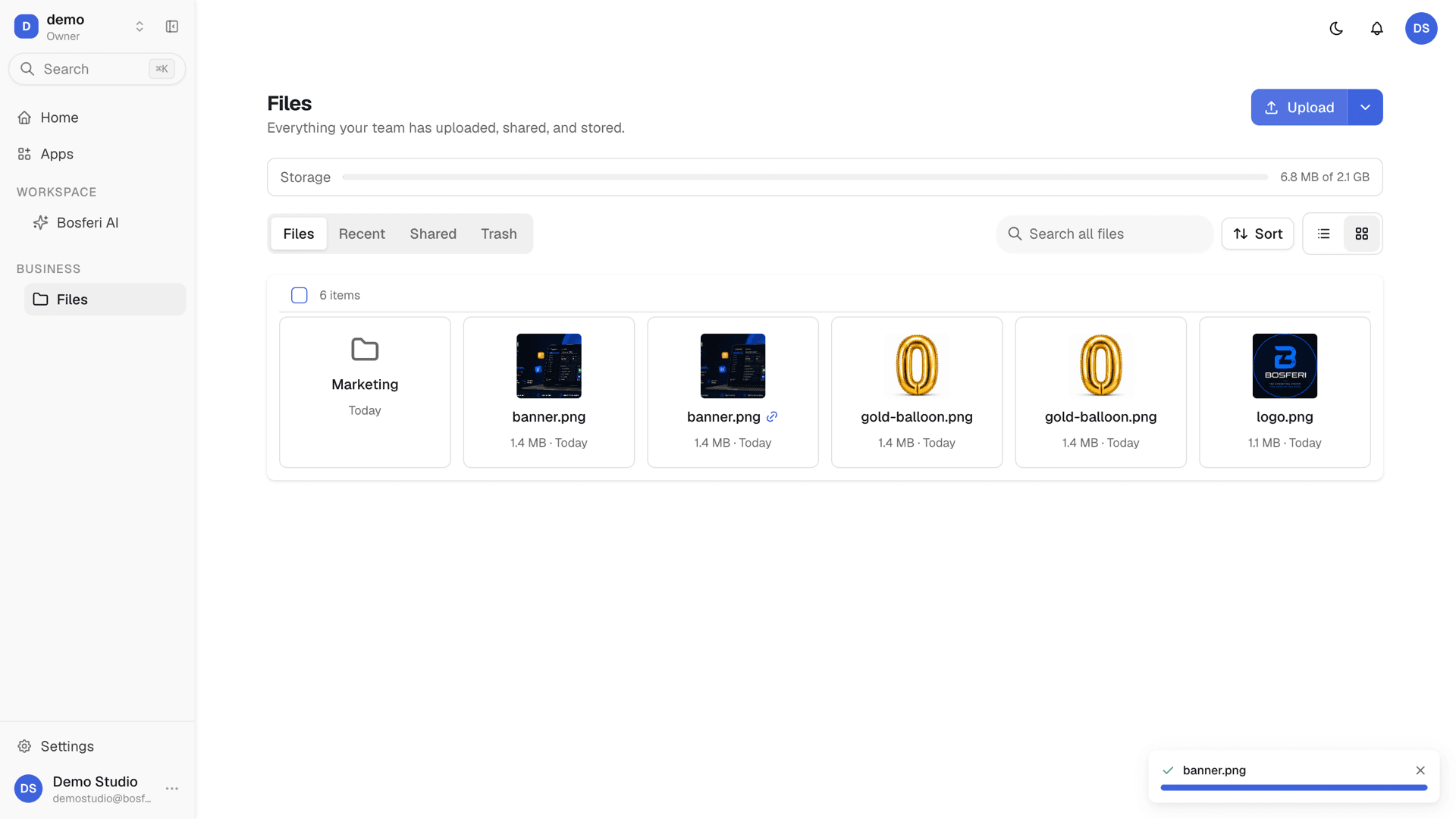
Tip. Drag a whole batch at once. Each file uploads on its own.
- 2
Step 2
Or scan a code to upload from your phone
Scan a QR code from the desktop app to open an upload session on your phone. No app install, no emailing files to yourself, straight from your camera roll into Files.

Tip. Keep the QR page open on your computer to watch files arrive.
- 3
Step 3
Organize into folders
Group files into folders anyone on the team can open. Rename or move files and folders whenever things need reorganizing, and search by name to find a file in any folder.
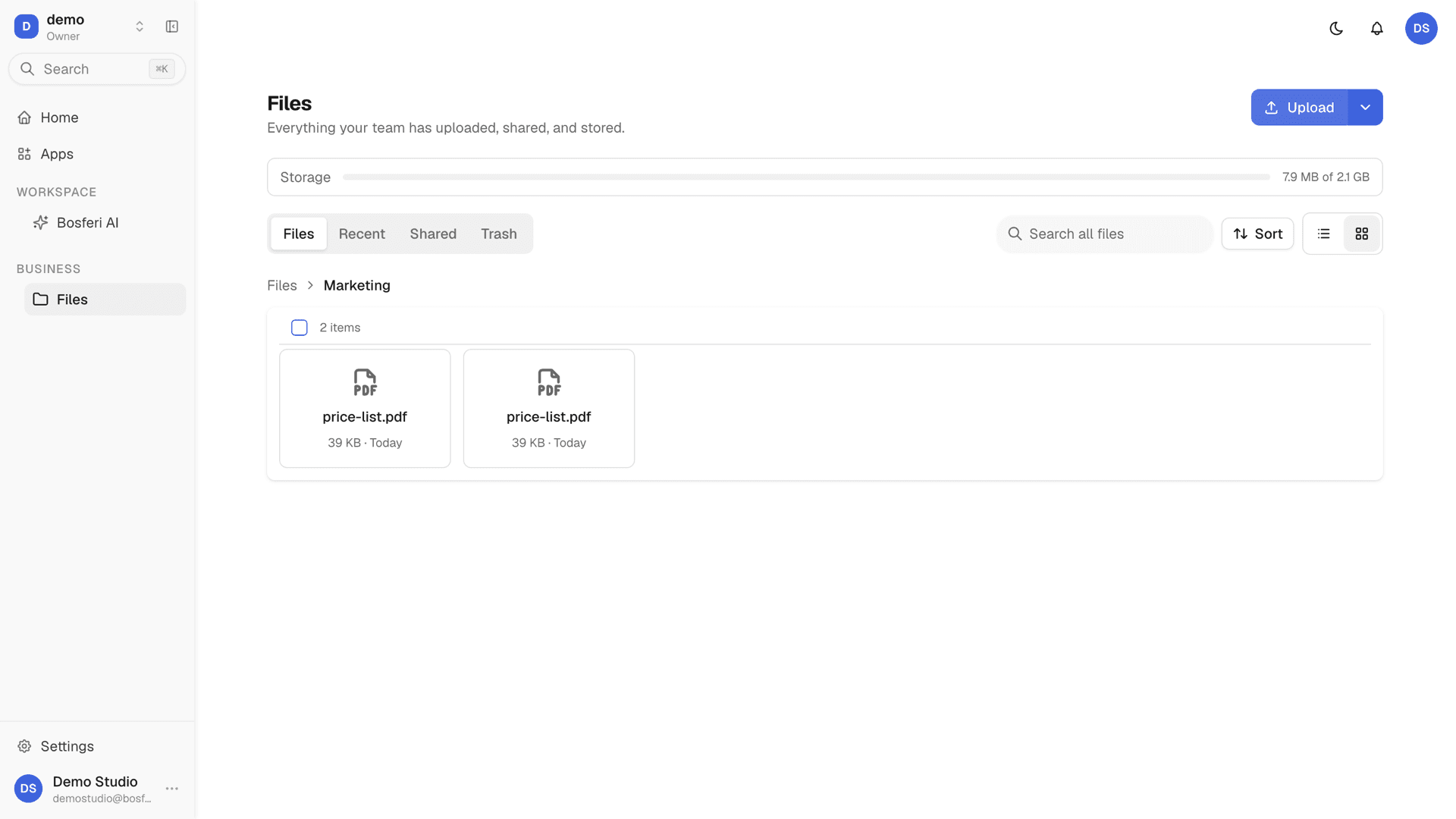
Tip. Search looks in every folder, so a file is never lost.
- 4
Step 4
Preview without downloading
Images get a thumbnail, and images, PDFs, and videos open in a full-screen viewer, so you can check it's the right file without downloading it.
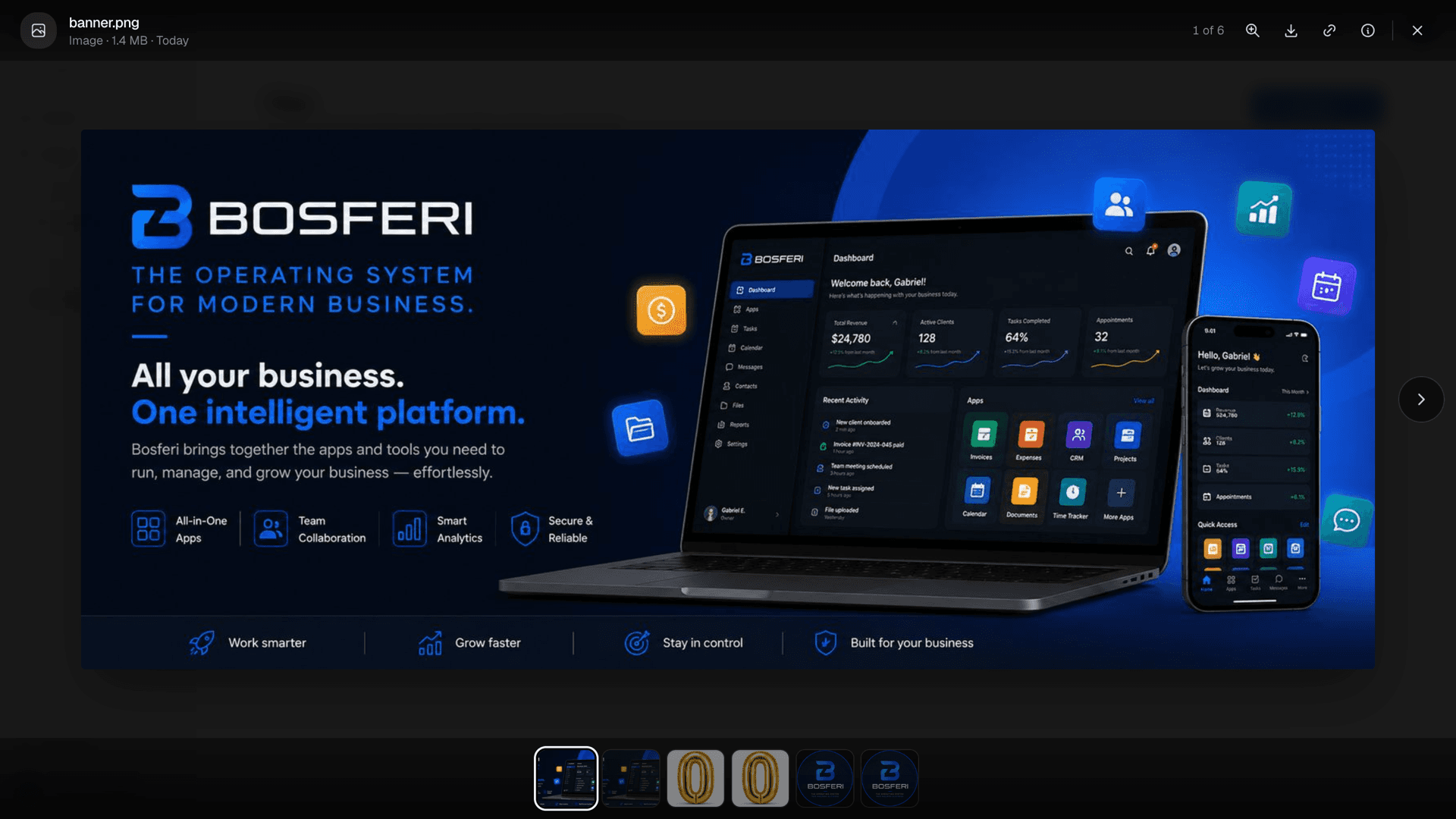
Tip. Open a PDF or video full screen to check it before sharing.
- 5
Step 5
Share it by link
Send a file or a whole folder to anyone, no account needed. Add a password, an expiry date, or a download limit, make it view only, and turn the link off whenever you want.
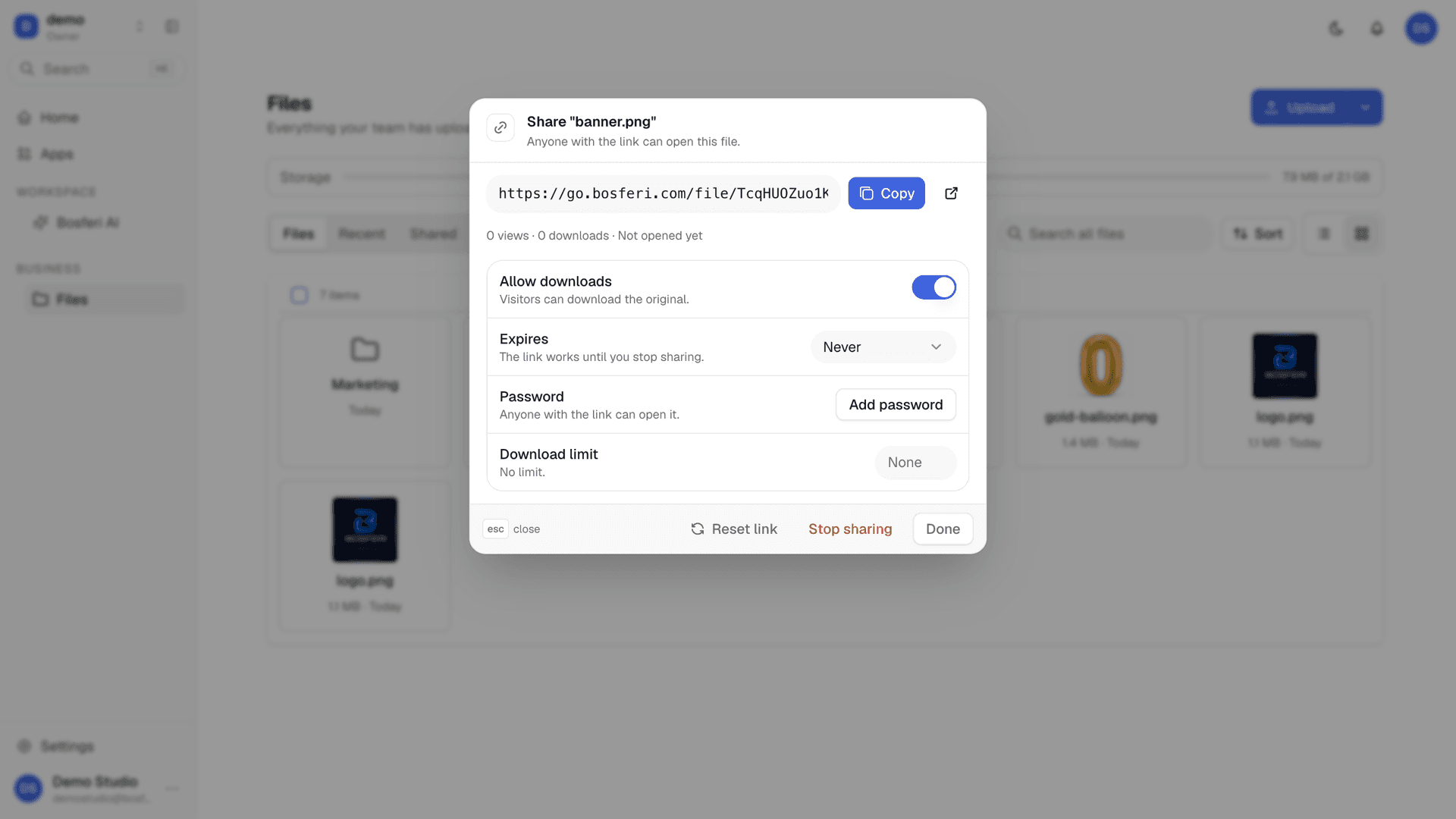
Tip. Add an expiry date for anything you only need to share once.
- 6
Step 6
Undo a wrong delete
A trashed file or folder stays in the trash for 14 days. Restore it from there instead of starting over.
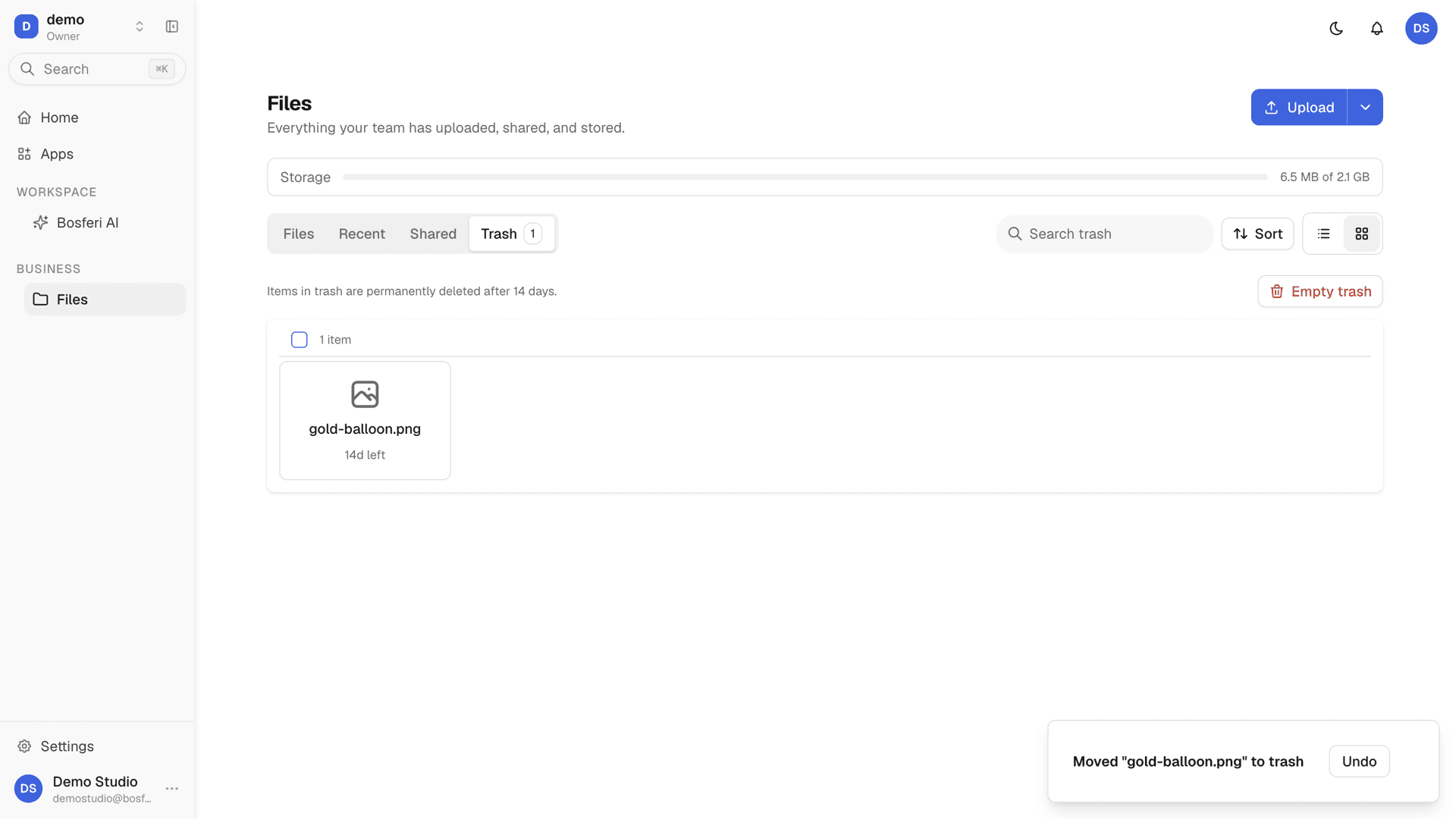
Tip. Open the Trash tab to see what can still be restored.
Get started
Try it with your next file.
Start your 14-day free trial. No card required until you decide to keep a paid app or move to Business.
We use cookies for essential site functionality and, only with your consent, for analytics and advertising. Learn more.