



Run your team
Bosferi AIChat, web search, files, calendar and menu actionsNotesShared team notesFilesFolders, QR upload, previewsCalendarOne shared team calendarSheetsSpreadsheets for your teamTrack your money
ExpensesReceipts scanned by AIOne workspace, many apps
Every app shares your people, sign in and permissions. Turn on only what you need.
View all appsNot sure where to start?
Tell us how your business runs and we'll point you to the right apps.
Browse the help centerTalk to usFrom a blank week to a schedule everyone can see.
Here's what happens from your first event to a calendar the whole team runs on.
- 1
Step 1
Pick a view
Switch between month, week, day and agenda, or open the year view to see everything at once.
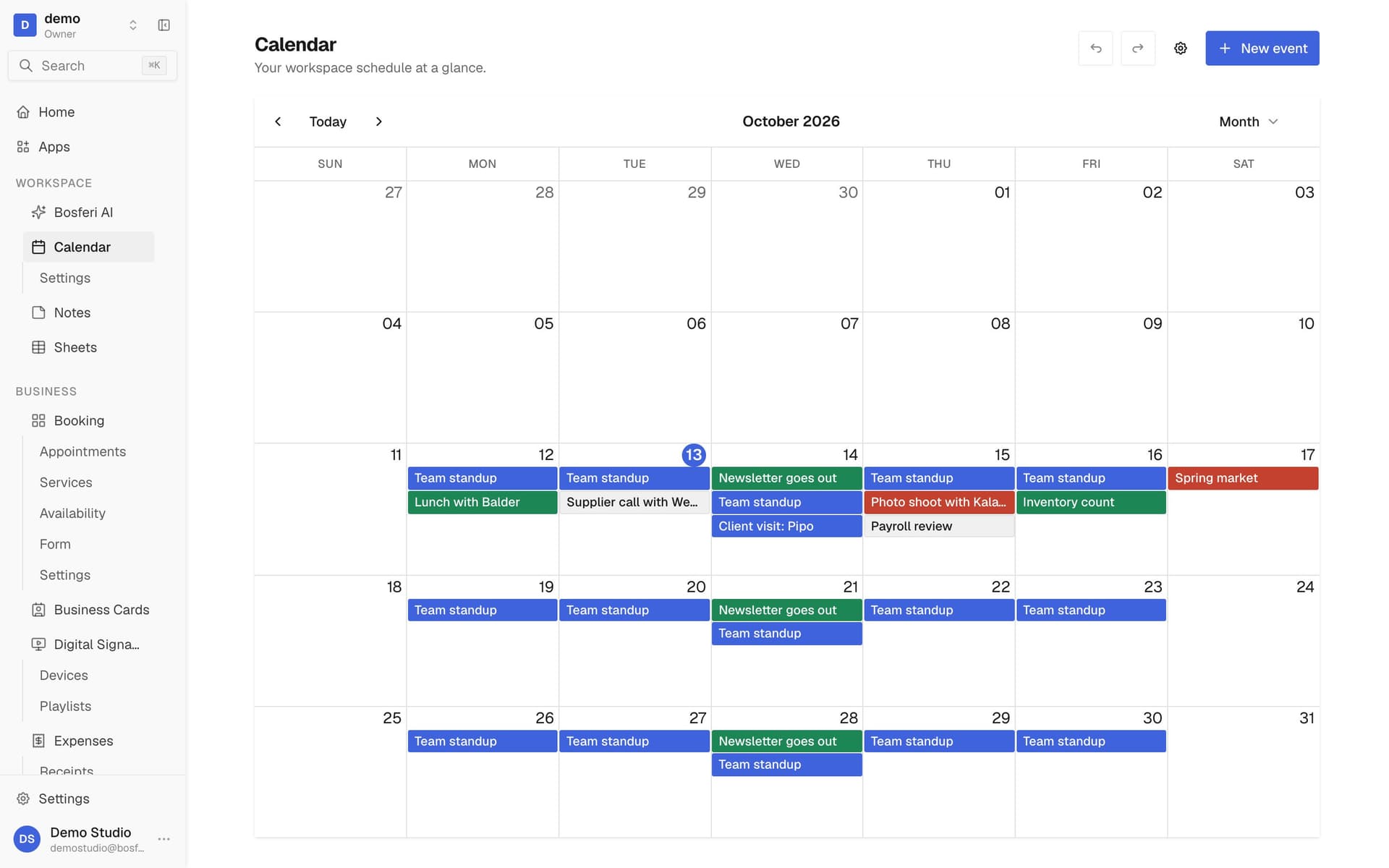
Tip. Each person can choose which view opens first in Calendar settings.
- 2
Step 2
Create an event
Click a time slot and add a title. Add a location, a meeting link, a description, a color and the teammates who should come.
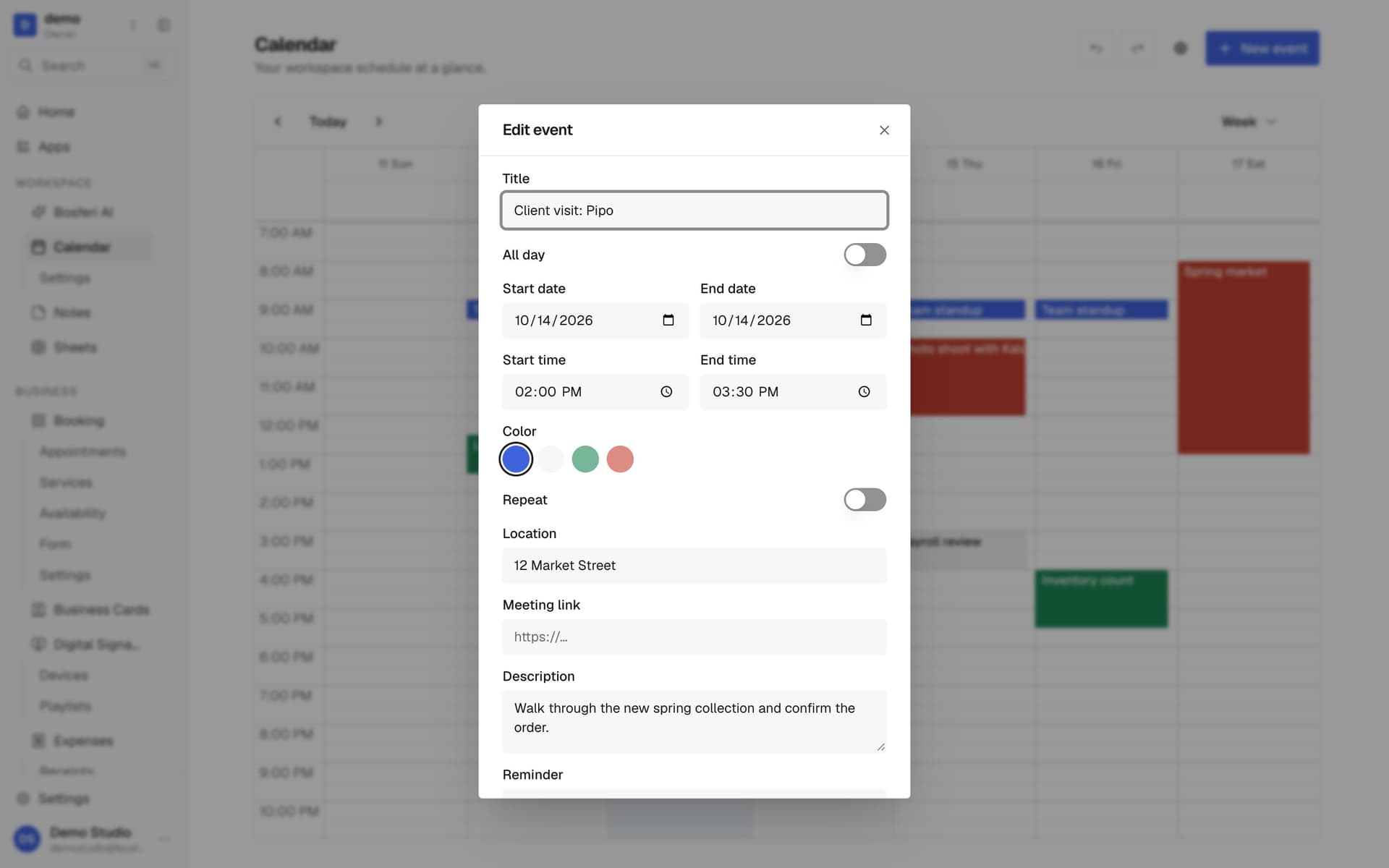
Tip. Pick one of the four colors to tell kinds of events apart at a glance.
- 3
Step 3
Repeat it and add a reminder
Make it repeat daily, weekly, monthly or yearly, and pick a reminder. You and the attendees get a notification before it starts.
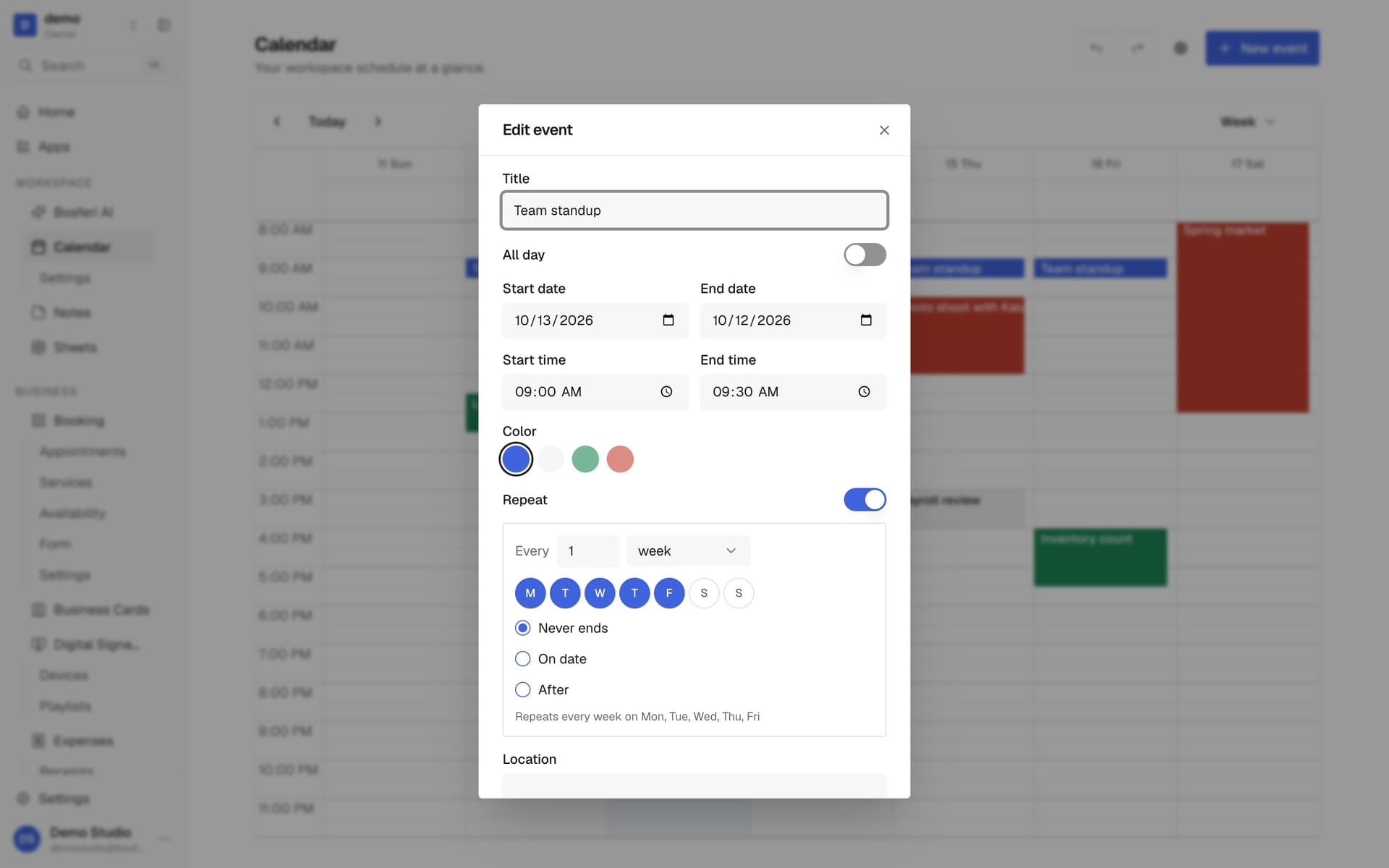
Tip. Reminders go to everyone on the event, so add teammates as attendees before you save.
- 4
Step 4
Drag to reschedule
Drag an event to a new time, or stretch it to change its length. For a repeating event, choose this one, the following ones or all of them.
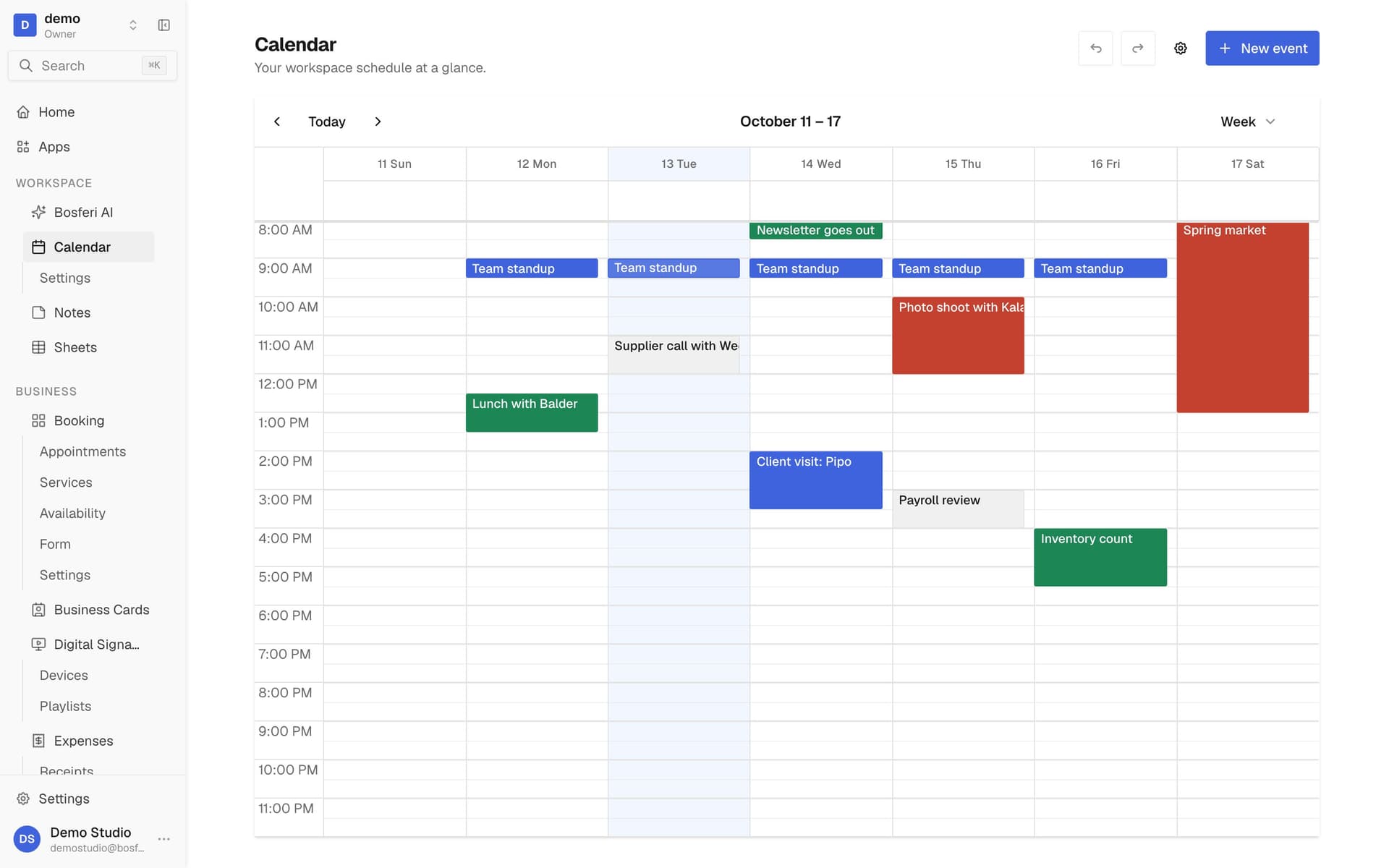
Tip. Moved the wrong event? Use undo at the top of the calendar.
- 5
Step 5
See bookings and export
Booking appointments show up on the calendar by themselves. Export your events as an .ics file whenever you need them elsewhere.
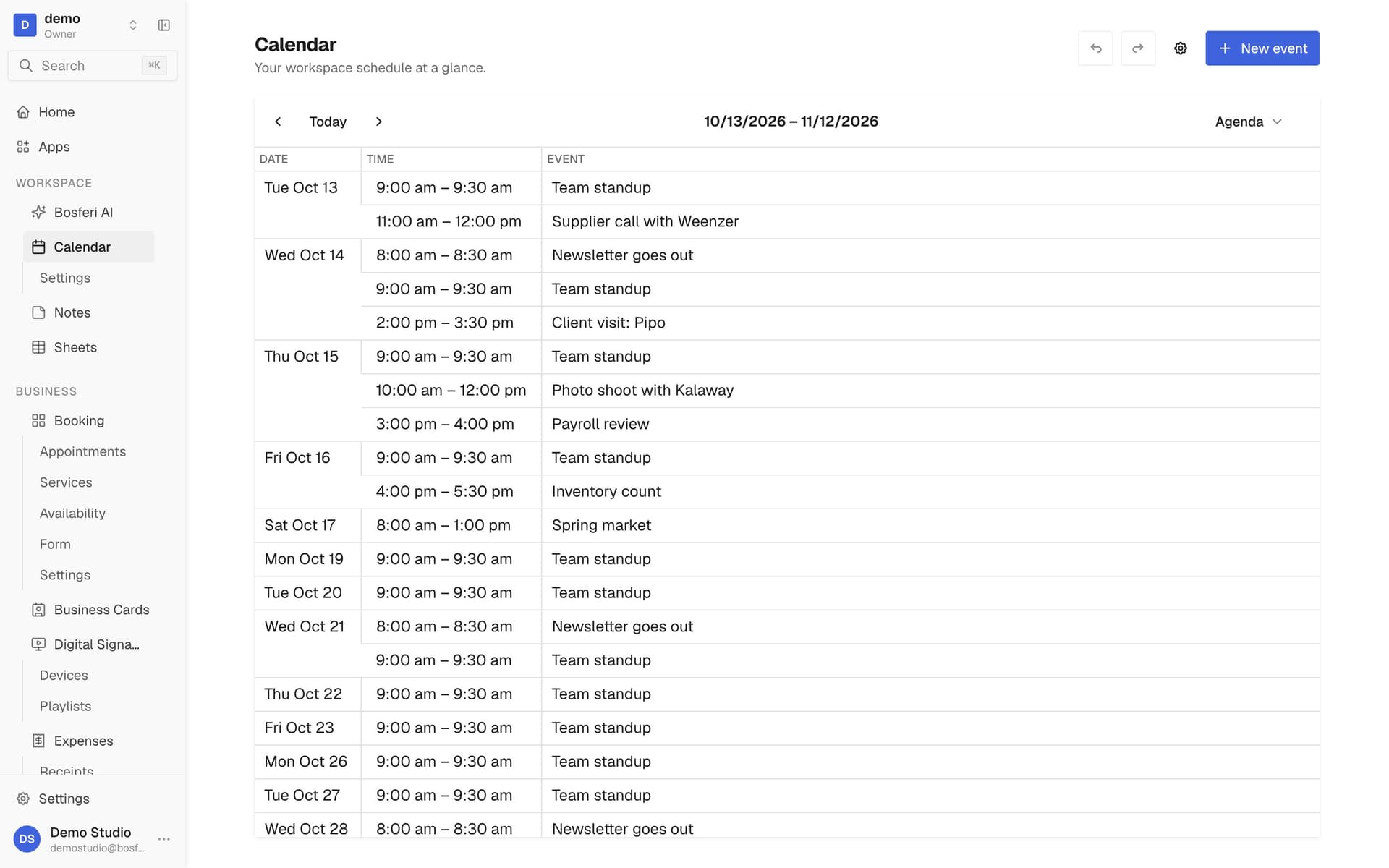
Tip. Booking appointments are read only here. Open them in Booking to change them.
- 6
Step 6
Set it up your way
In settings, pick the view that opens first, the first day of the week, whether weekends show and how long a new event lasts.
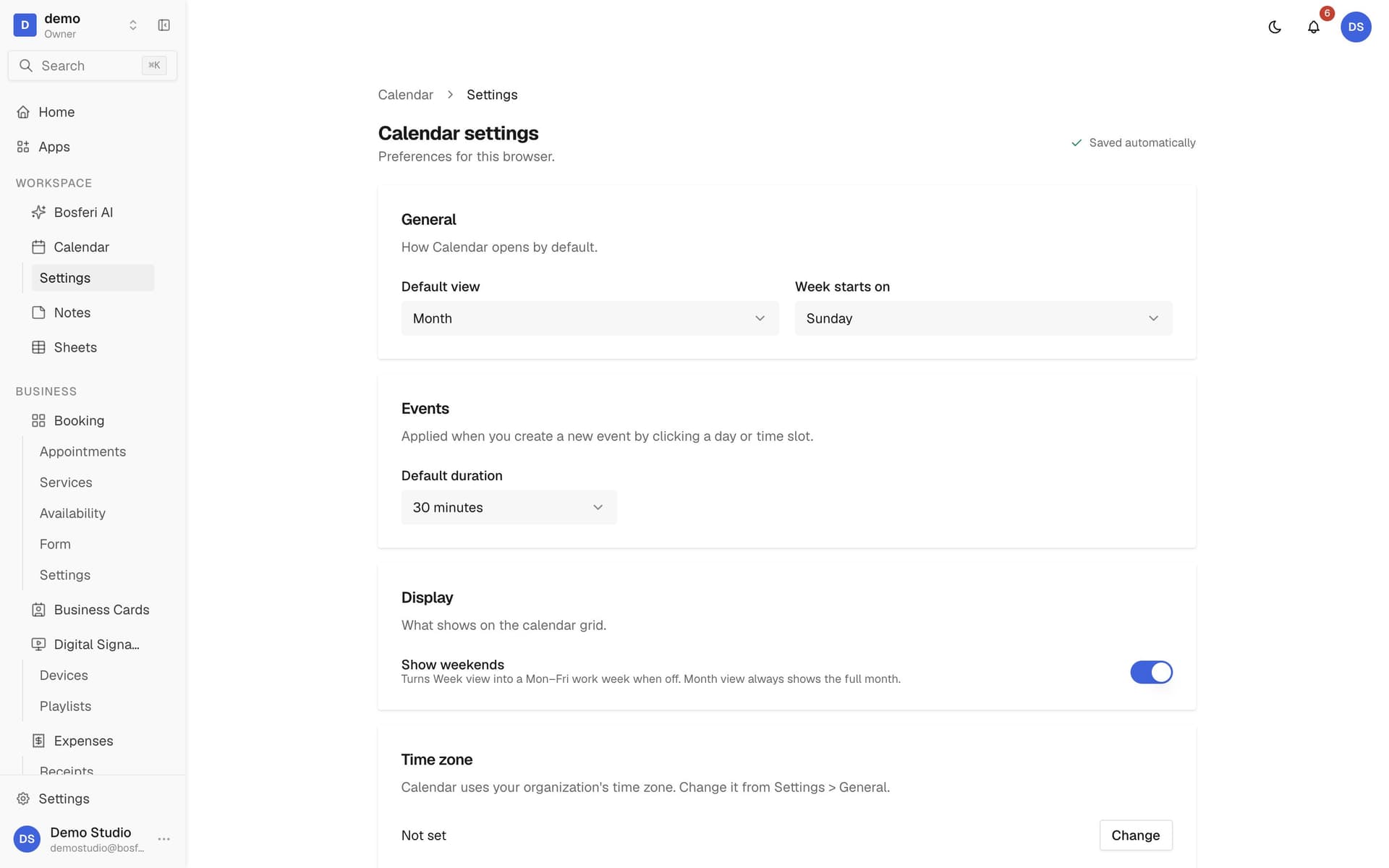
Tip. Turn weekends off to make the week view a five day work week.
Get started
Try it with your next event.
Start your 14-day free trial. No card required until you decide to keep a paid app or move to Business.
We use cookies for essential site functionality and, only with your consent, for analytics and advertising. Learn more.